1Upload and recognisePlan image → Planner 5D project
POST/recognition
GET/recognition
GET/projects/{key}/document
API guide
The same flow as our demo, step by step: upload a plan, get an editable 3D project, furnish it, then export renders and a 360° walkthrough. Each step shows the result and the API calls that make it.
Examples use curl, the base URL in $P5D_API_BASE_URL and your API key in $P5D_API_TOKEN.
The flow in API calls
Every step runs on your server. Your app sends the calls, waits for each job, and shows the results in your own interface.
Before you start
Send it as Authorization: Bearer. Keep it on your server. Never put it in a page, a link or a log.
Long tasks return an ID. Save it, then poll the status with a growing wait (for example 10 s, 30 s, 1 min, 2 min).
Furnish and CAD export return a queue name. Read the messages start → result → end from it.
Paid calls take a request_id. Reuse the same one after a timeout, so the job is not created or charged twice.
Step 1 of 4 · Upload and recognise
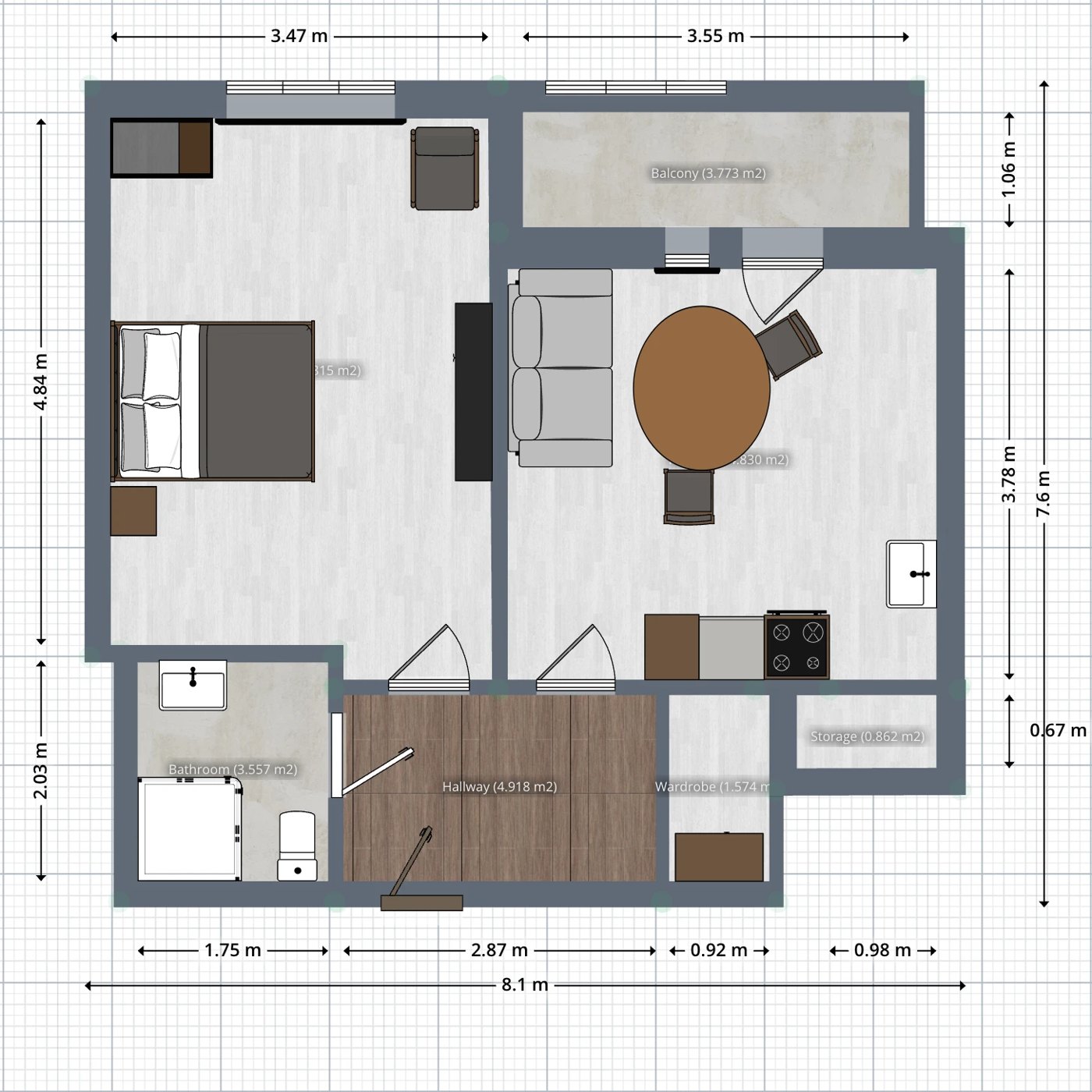
AI finds the walls, doors, windows and rooms and saves them as a new project in your account. The result is structured data you can read, not only a picture.
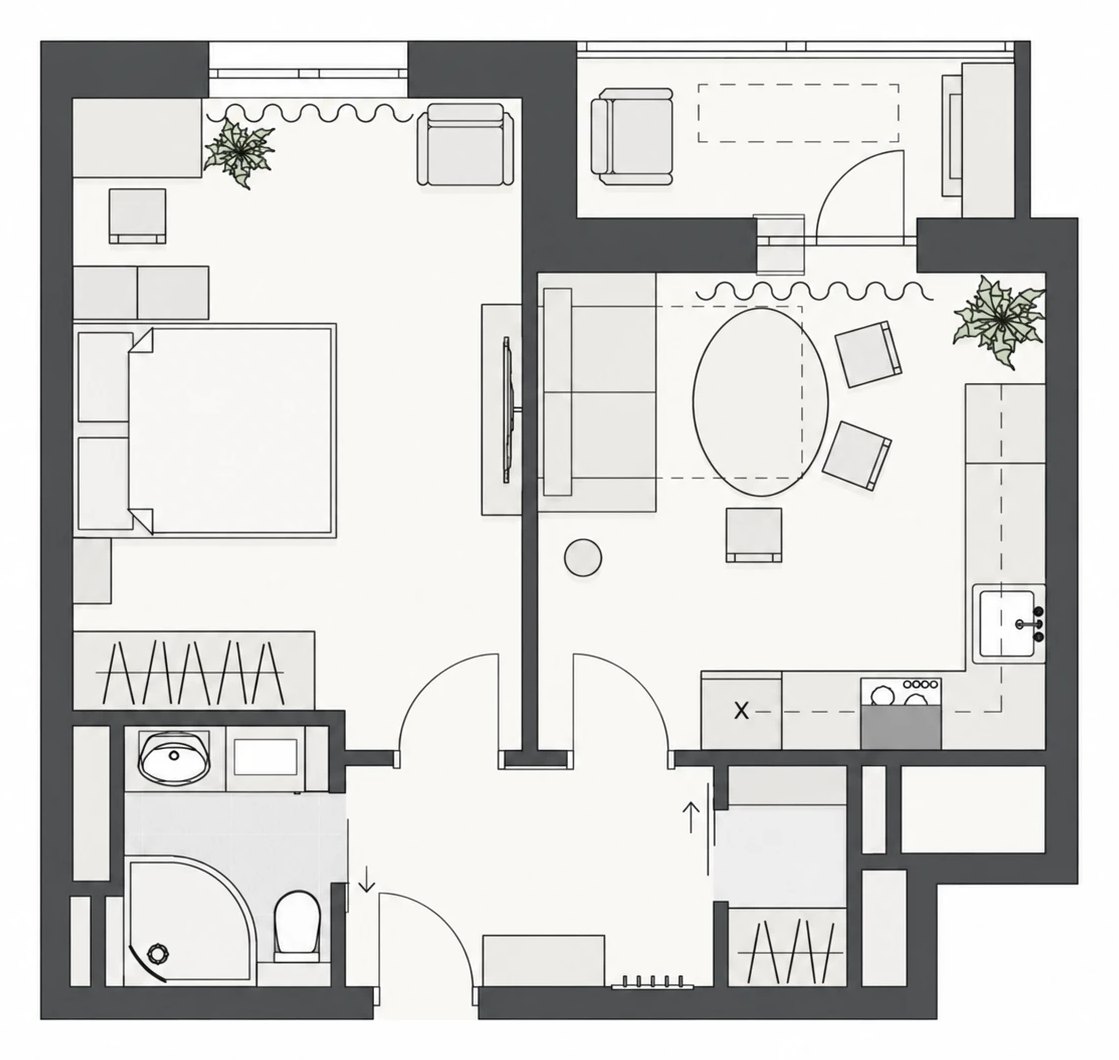
Send the file as Base64 text with the base64, prefix. Optional dimensions_info sets the scale: two points on the image and their real length in cm. You get a task id.
{ printf '{"data":"base64,'; base64 < plan.png | tr -d '\n'
  printf '","dimensions_info":{"start":[120,840],"end":[620,840],"length_cm":500}}'; } > body.json

curl -s -X POST "$P5D_API_BASE_URL/recognition" \
  -H "Authorization: Bearer $P5D_API_TOKEN" \
  -H "Accept: application/json, application/problem+json" \
  -H "Content-Type: application/json" \
  --data-binary @body.json
# {"error":0,"id":12345}Find your task in the list and poll until status is finished. You get the new project key in project_hash.
{"id":12345,"project_hash":"YOUR_PROJECT_KEY",
 "status":"finished",
"job":{"kind":"recognition","status":"succeeded","terminal":true}}Read the full project as JSON. Units are cm. You get the floor with its Room, Wall, Door and Window objects, room types and sizes.
curl -s "$P5D_API_BASE_URL/projects/$KEY/document" \
  -H "Authorization: Bearer $P5D_API_TOKEN" \
  -H "Accept: application/json, application/problem+json" > project.json
# Project → items[0] = Floor → Room (x, y, rtype, items: Wall…), Door, Window, Ns
Step 2 of 4 · Furnish
The furnish service fills one room at a time. Pick one style for the whole home, run it for each room, and save the results into the project.
List the styles. Use only styles with used_in_ai_smart_wizard: true. Example: Scandinavian is 23.
Send one Room object from the document, a room type and the style. Leave out id. You get a queue name.
curl -s -X POST "$P5D_API_BASE_URL/rooms/furnish" \
  -H "Authorization: Bearer $P5D_API_TOKEN" \
  -H "Accept: application/json, application/problem+json" \
  -H "Content-Type: application/json" \
  -d '{"room":[ {"className":"Room","x":3286.6,"y":3828.1,"rtype":10,"items":[…]} ],
       "room_type_id":2,"room_style_id":23}'
# 201 {"queue":"…"}Read the queue. The result message has the furnished room: the room plus its furniture (Ns items). Nothing is saved yet.
Add the furniture of every room to the document, then save the whole scene. Keep all fields you do not change. The last save wins.
jq -n --arg key "$KEY" --rawfile data furnished.json \
  '{key:$key, name:"Apartment, Scandinavian", data:$data}' > save.json

curl -s -X PUT "$P5D_API_BASE_URL/projects" \
  -H "Authorization: Bearer $P5D_API_TOKEN" \
  -H "Accept: application/json, application/problem+json" \
  -H "Content-Type: application/json" \
--data-binary @save.jsonStep 3 of 4 · Editable 2D/3D project
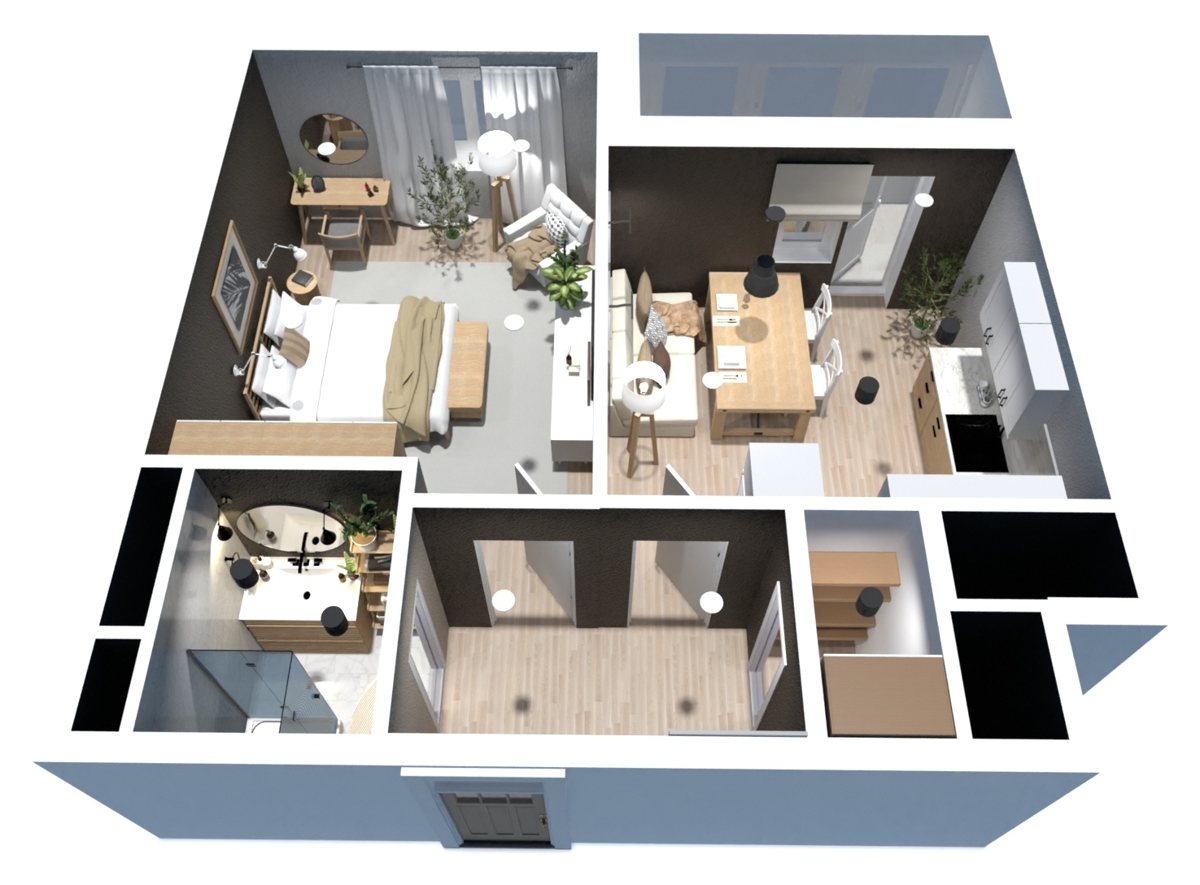
The furnished apartment is a normal Planner 5D project. Embed it so users can look at it in 2D and 3D, or keep editing it.
Opens the live project on planner5d.com
You get iframe HTML and view URLs for the default, 2D and 3D views. Put the iframe in your page. Example: the demo project in 3D.
curl -s "$P5D_API_BASE_URL/projects/$KEY/embedded-links" \
  -H "Authorization: Bearer $P5D_API_TOKEN" \
  -H "Accept: application/json, application/problem+json"
Change walls, doors, furniture or materials from your own code, then export again.
Step 4 of 4 · Exports
All native exports use one pattern: prepare the task, start it, then poll until it is finished. Native renders use your render quota, not AI Studio credits.
# the export pattern
POST /projects/{key}/renders   # prepare: kind = render | panorama | walkthrough → {"id":7504}
POST /renders/{id}/start       # start:   {"quality":"draft" | "hd" | "4k"}
GET  /renders/{id}             # poll until finished → image_url
Step 4 · Export a 360° walkthrough
A walkthrough is a set of panoramas, one for each saved camera. Your page joins them into a tour with markers and a mini floor plan.
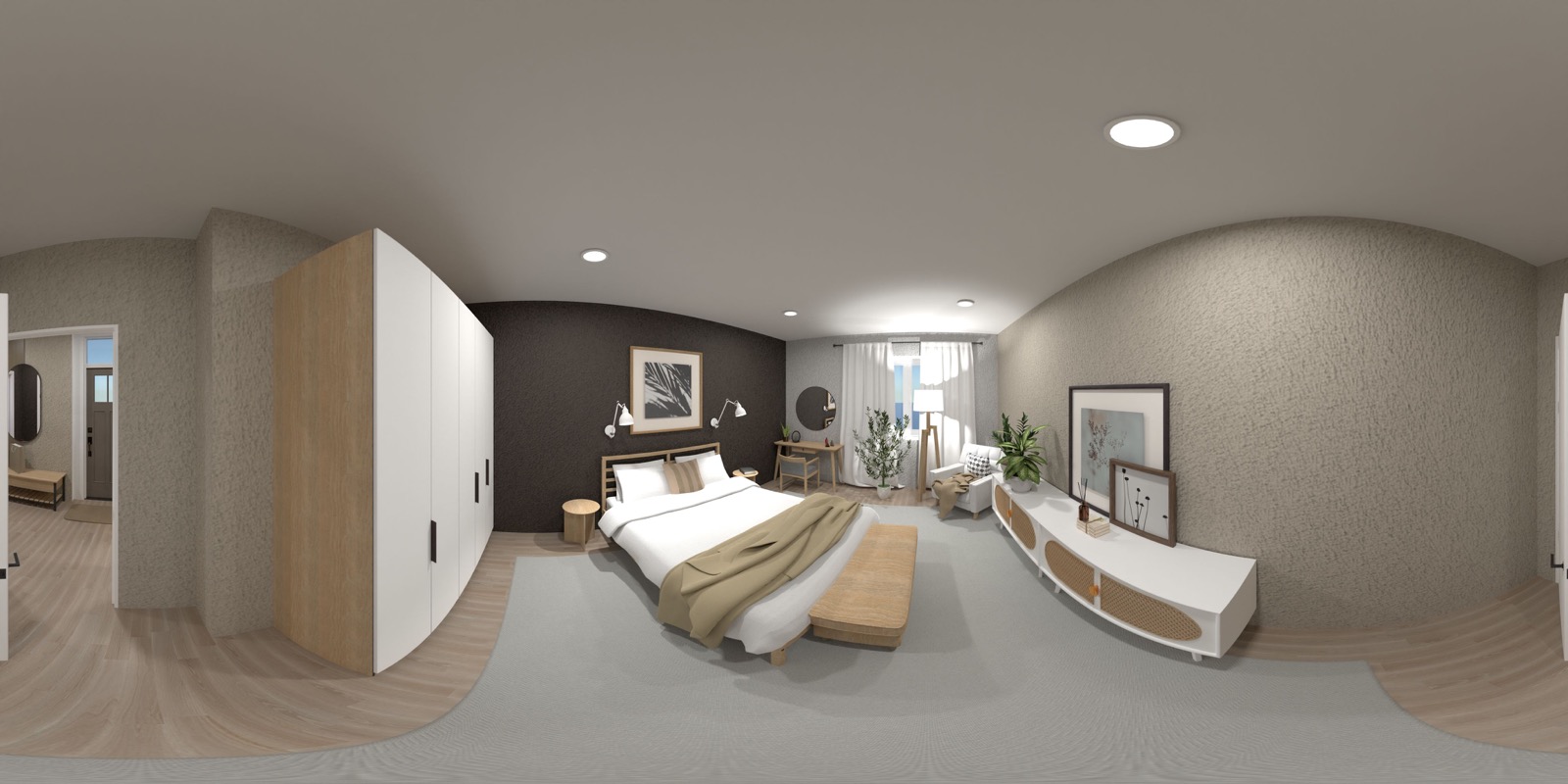
Add a camera to each room in the document, then save. A recognised project has no cameras.
kind: "walkthrough" with 1–12 saved camera_ids. You get a render ID with one child per point.
curl -s -X POST "$P5D_API_BASE_URL/projects/$KEY/renders" \
  -H "Authorization: Bearer $P5D_API_TOKEN" \
  -H "Accept: application/json, application/problem+json" \
  -H "Content-Type: application/json" \
  -d '{"request_id":"apt-12-tour-v1","kind":"walkthrough",
"camera_ids":["p144","p145"],"floor":0}'Start it. Size is fixed at 8192×4096 for each point.
Poll the render and its children. You get an image_url for each point. Show them in a 360° viewer (for example Pannellum). Place the markers from the camera positions in the document.
Step 4 · Export renders
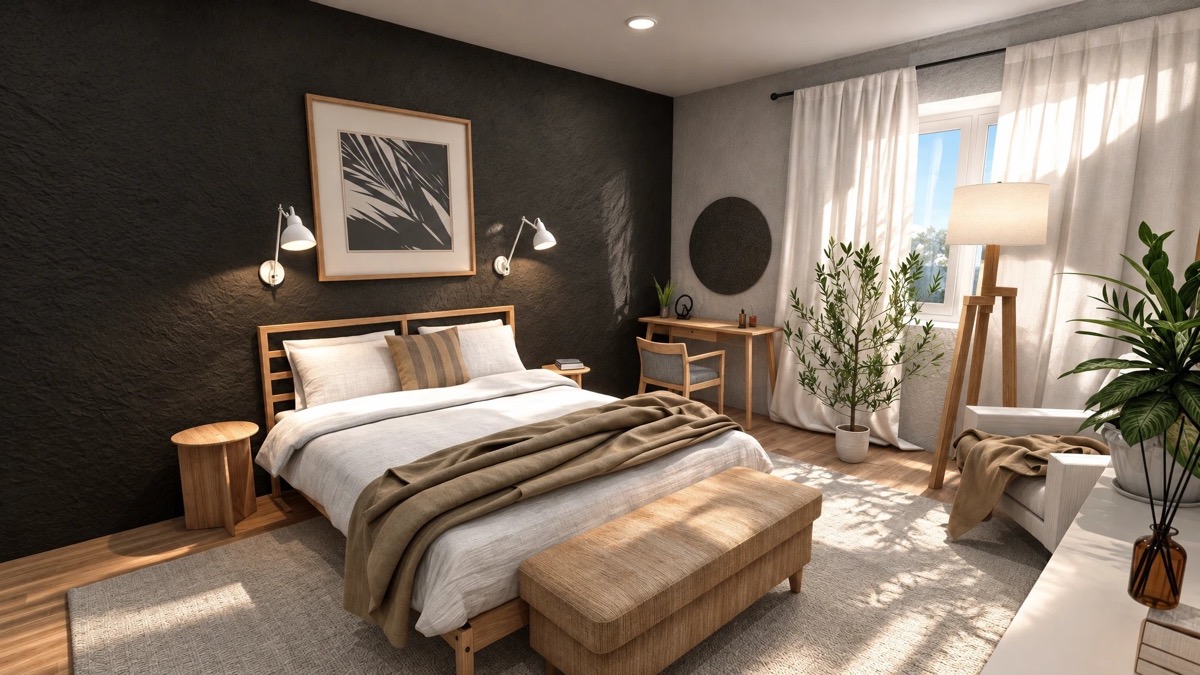
Set a camera for each view, render it natively, then improve it in AI Studio if you want.
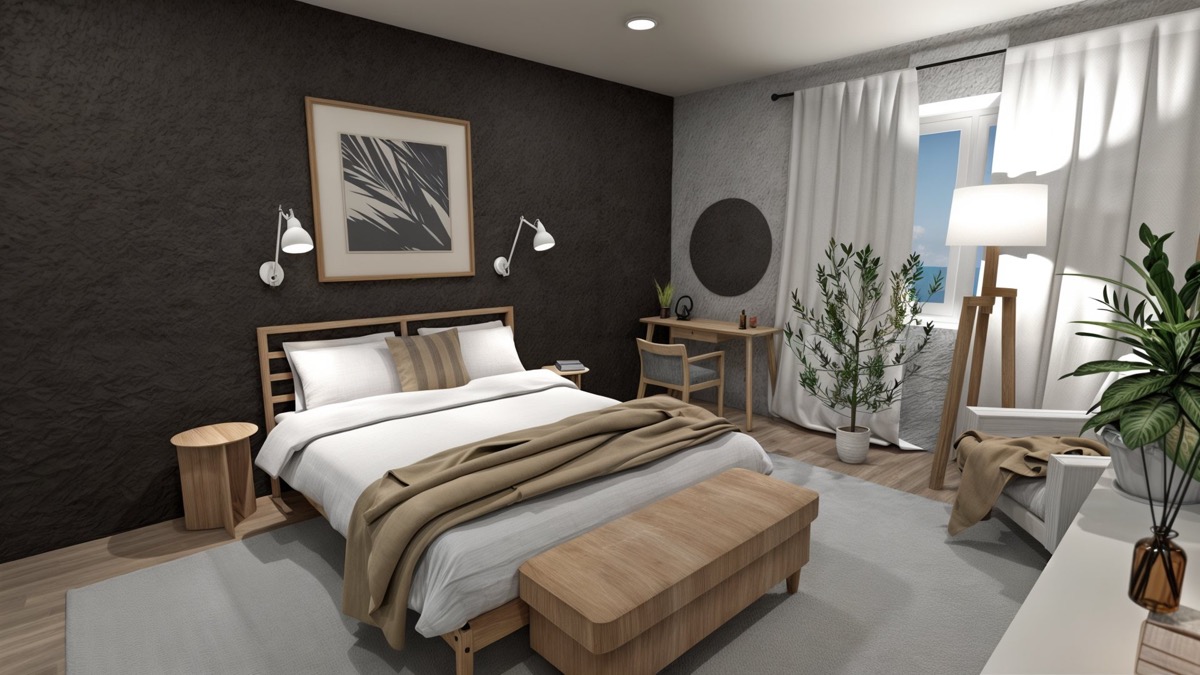
kind: "render" with your own camera: from and to as [x, height, y] in cm, plus fov. Or use a saved camera.
curl -s -X POST "$P5D_API_BASE_URL/projects/$KEY/renders" \
  -H "Authorization: Bearer $P5D_API_TOKEN" \
  -H "Accept: application/json, application/problem+json" \
  -H "Content-Type: application/json" \
  -d '{"request_id":"apt-12-bedroom-v1","kind":"render","floor":0,
       "camera":{"from":[3420,160,3300],"to":[3700,120,3900],"fov":60},
"light_ceiling":true}'Choose {"quality":"4k"} (or hd, draft). Then poll GET /renders/{id} for the image_url.
Optional enhance: upload the finished render as a file. You get an asset ID.
Run upscale (sharper, about 2K) or render-image (more photoreal) on the asset. Poll GET /generations/{jobId} for the result link.
curl -s -X POST "$P5D_API_BASE_URL/generations" \
  -H "Authorization: Bearer $P5D_API_TOKEN" \
  -H "Accept: application/json, application/problem+json" \
  -H "Content-Type: application/json" \
  -d '{"operation":"upscale","request_id":"apt-12-bedroom-up-v1",
"source":"YOUR_ASSET_ID","count":1,"maximum_credits":20}'render-image: 6 credits.Alternative flow · No 3D project
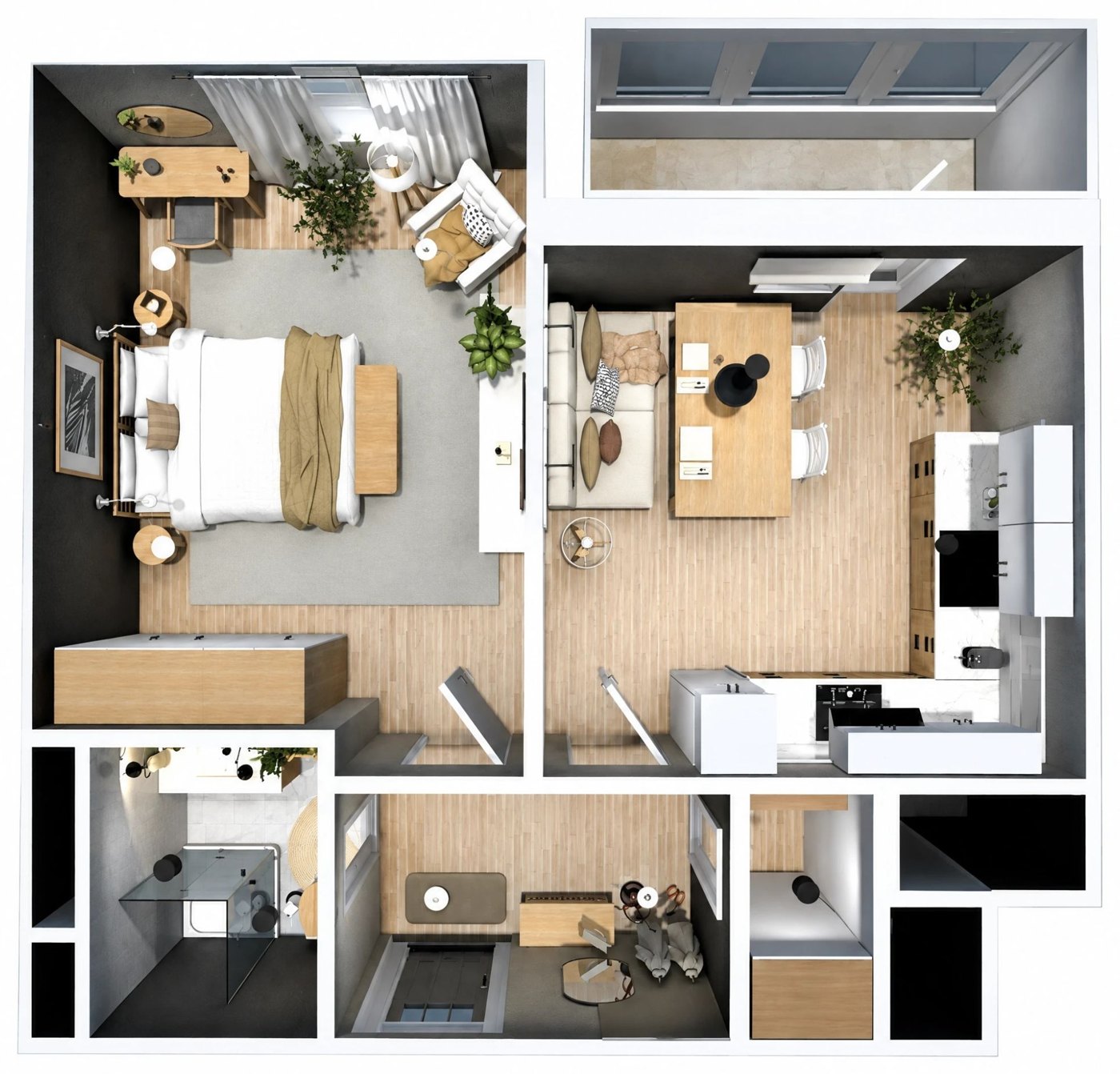
AI Studio turns the plan image into a furnished, photoreal top view. Nothing is modelled in 3D, so you get an image and not an editable project.
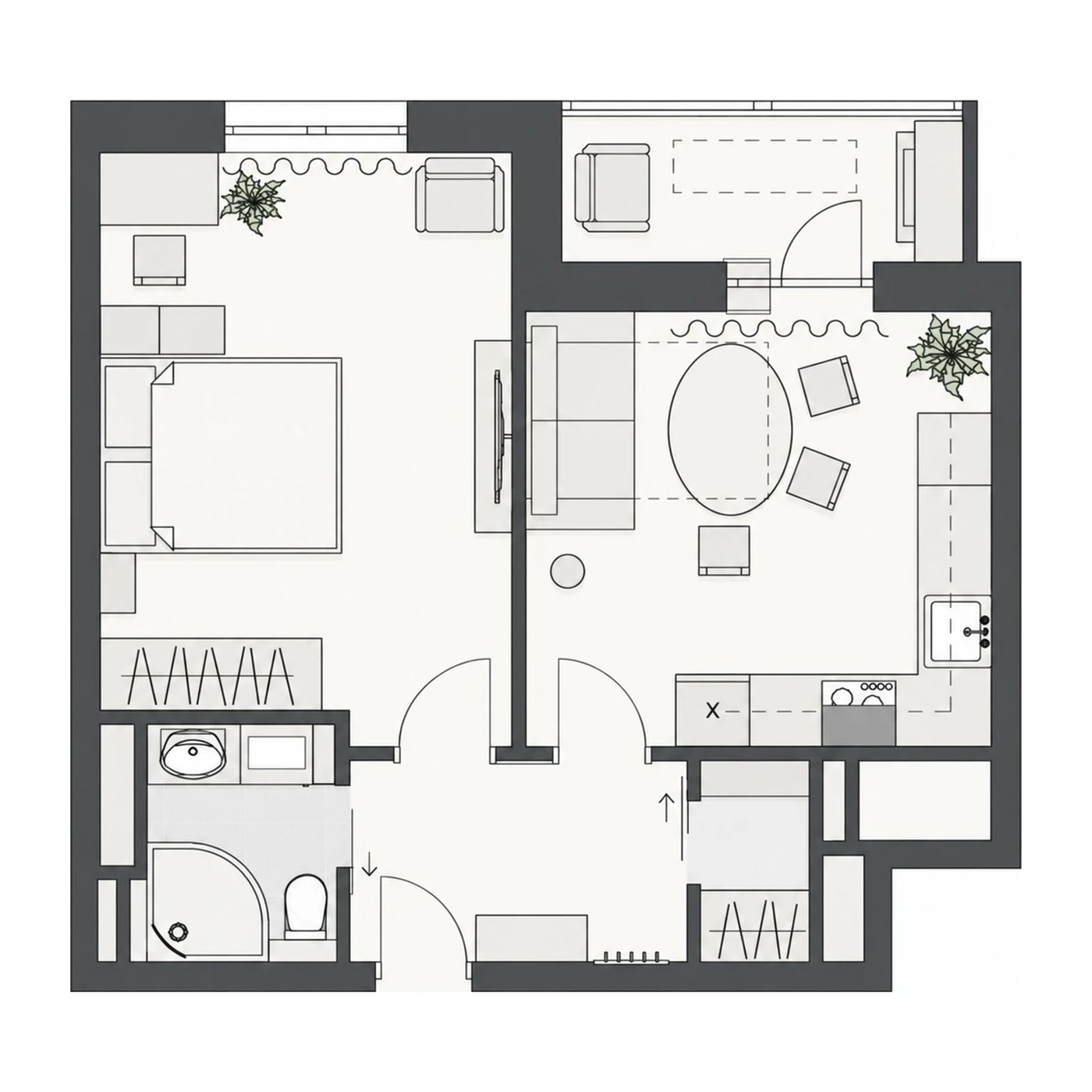
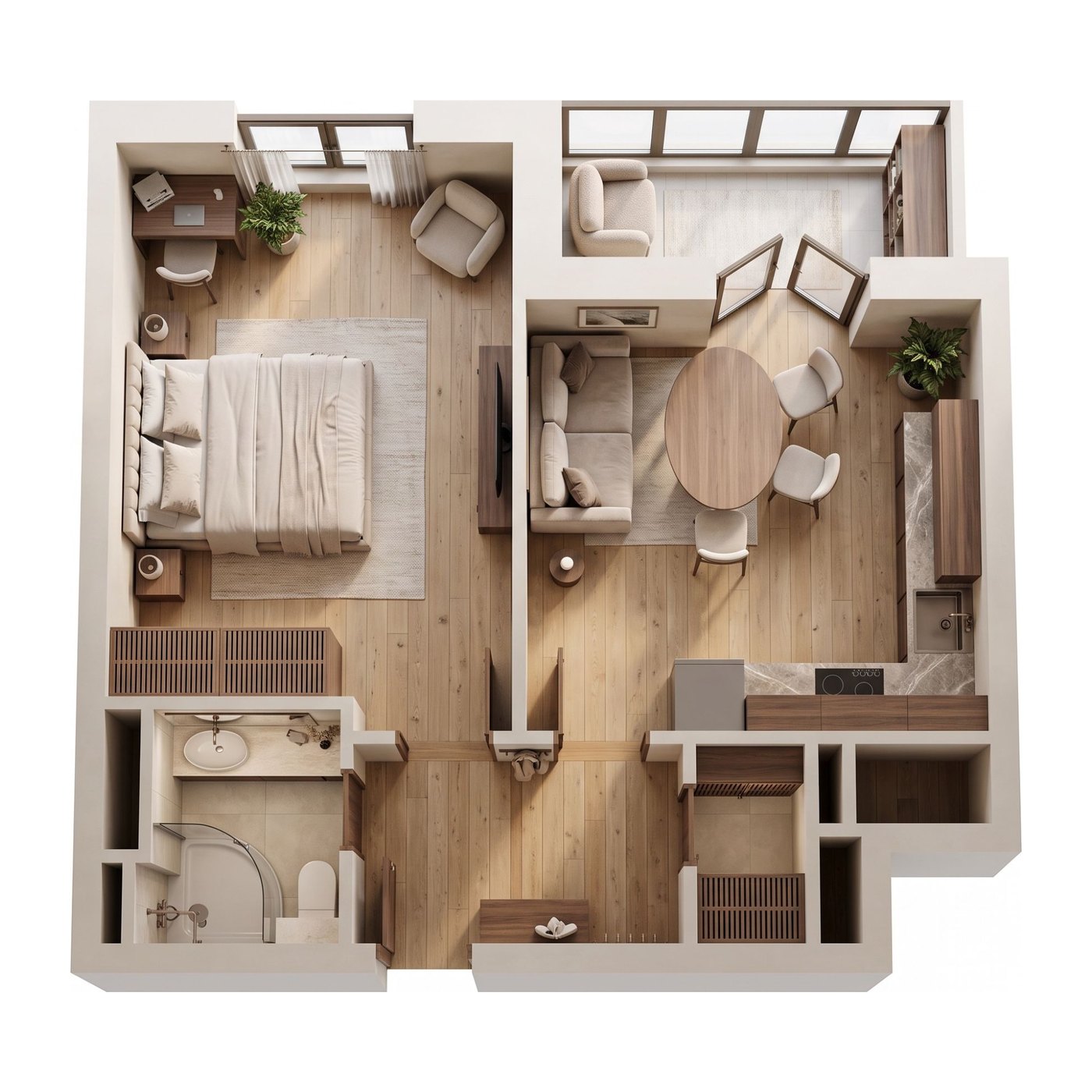
floor-plan-3d resultUpload the plan image (multipart field file). You get an asset ID.
curl -s -X POST "$P5D_API_BASE_URL/generation-assets" \
  -H "Authorization: Bearer $P5D_API_TOKEN" \
  -H "Accept: application/json, application/problem+json" \
  -F "file=@plan.png;type=image/png"
Optional: check the price first.
operation: "floor-plan-3d" with the asset as source. An instruction can set the look.
curl -s -X POST "$P5D_API_BASE_URL/generations" \
  -H "Authorization: Bearer $P5D_API_TOKEN" \
  -H "Accept: application/json, application/problem+json" \
  -H "Content-Type: application/json" \
  -d '{"operation":"floor-plan-3d","request_id":"apt-12-fp3d-v1",
       "source":"YOUR_ASSET_ID","instruction":"Scandinavian style, light oak floors",
"count":1,"maximum_credits":20}'Poll until succeeded. You get the image link. GET /generations/{jobId}/billing shows the credits charged.